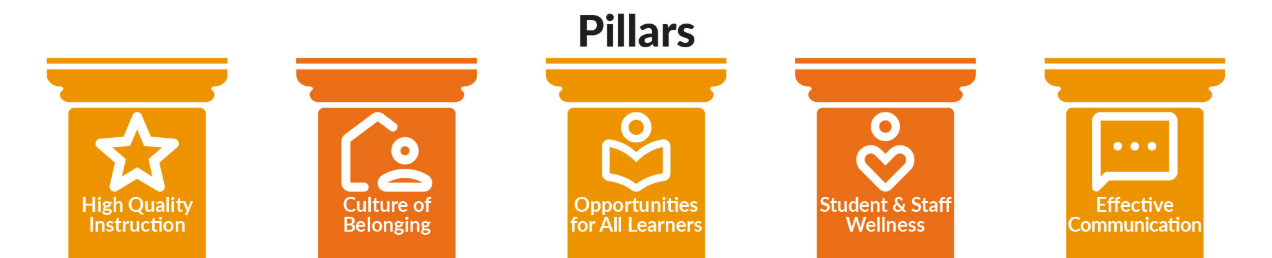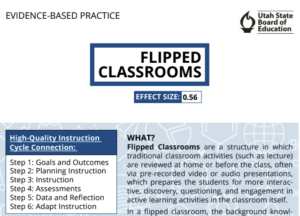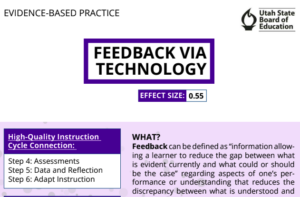
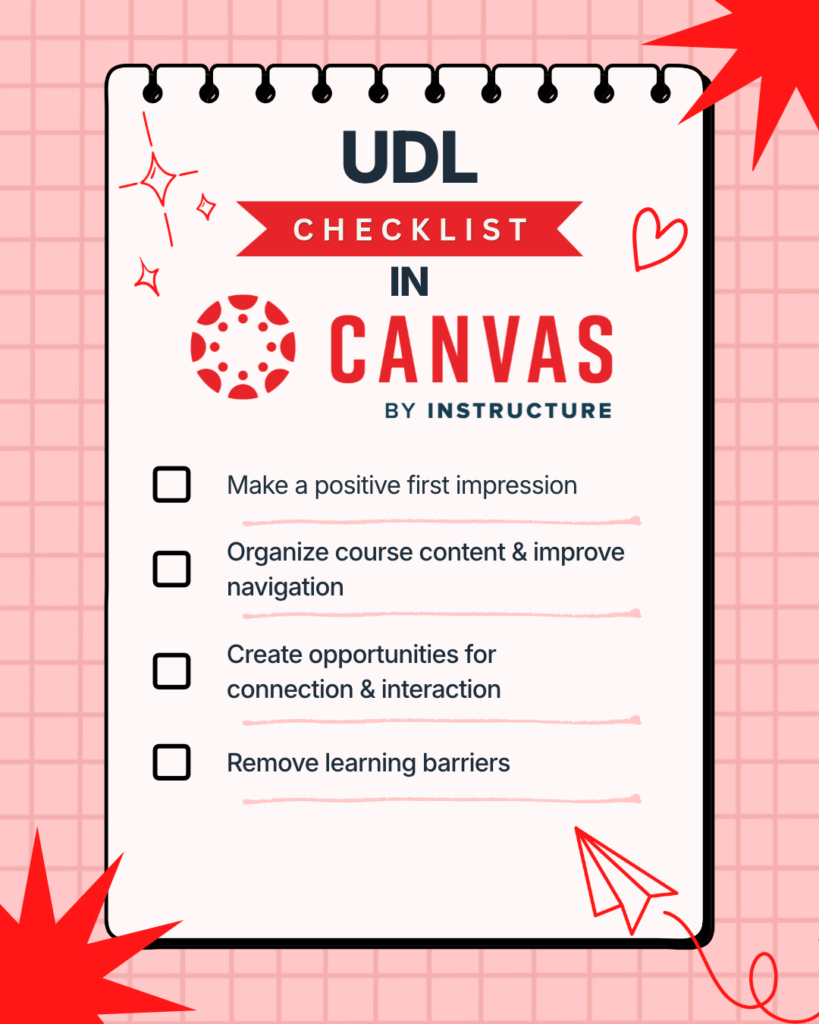
The focus this month is on Opportunities for All Learners from the pillars of the Jordan School District’s Strategic Plan. One of the ways teachers can support Opportunities for All Learners is by using a Universal Design for Learning (UDL) mindset when creating learning materials in Canvas. The goal of UDL is learner agency that is purposeful & reflective, resourceful & authentic, strategic & action-oriented and by design is universal, for everyone. There are several ways you can embed UDL principles into your Canvas course. Most of these ideas come from this Instructure blog post. Where possible, I’ve added a tutorial from the Canvas Guides to show you how to do that item on the checklist.
- Dashboard: Use an engaging image that can serve as a quick visual reminder of what your course is about. Tutorial: https://community.instructure.com/en/kb/articles/661115-how-do-i-add-an-image-to-a-course-card-in-the-dashboard
- Homepage: Create a purposeful homepage that includes course information, content, and activities that are easy to find. Limit clicks and scrolling! Tutorial: https://community.instructure.com/en/kb/articles/660956-how-do-i-set-a-front-page-in-a-course
- Student view: If you aren’t sure how something will look from a student’s perspective, use the “Student view” mode to check your work. Tutorial: https://community.instructure.com/en/kb/articles/661143-how-do-i-view-a-course-as-a-test-student-using-student-view

- Tabs: Limit the number of visible tabs in each course to simplify course navigation. Start with the essential tabs such as Announcements, Modules, and Grades, then add from there as needed. Tutorial: https://community.instructure.com/en/kb/articles/660741-how-do-i-manage-course-navigation-links
- Modules: Use a consistent module format for students and organize Modules by weeks or units.
- Order and prioritization: Ensure that modules and assignments are arranged in chronological order so students can quickly identify the next section that needs their attention. Tutorial: https://community.instructure.com/en/kb/articles/660902-how-do-i-move-or-reorder-a-module

- Instructor Presence: Introduce yourself and the course with a video welcome message and include a page where students can easily find your bio and contact information.
- Feedback: Grades are inevitable. Feedback is personal. Leave personalized comments for each student using recorded audio or video. Tutorial: https://community.instructure.com/en/kb/articles/664293-how-do-i-record-a-webcam-video-screen-capture-or-audio-recording-as-a-feedback-comment-in-speedgrader
- Announcements: Post weekly announcements with important reminders and personal messages to your students. Tutorial: https://community.instructure.com/en/kb/articles/660643-how-do-i-add-an-announcement-in-a-course

- Alternative text: Use the alternative text on images to describe what is in the photo to ensure all students can access the image.
- Accessibility Checker: Ensure that your font sizes, colors, and content organization is compatible with how your students learn. Tutorial: https://community.instructure.com/en/kb/articles/664351-how-do-i-use-the-accessibility-checker-in-canvas
- Immersive Reader: Show students how to access built in learning tools like the immersive reader that can translate text, read it aloud, or change the size/font of pages & assignments. Tutorial: https://community.instructure.com/en/kb/articles/661279-how-do-i-use-the-microsoft-immersive-reader-in-a-course-as-a-student
As with any resource or teaching practice, we recommend starting small and adding slowly to your repertoire. UDL can be overwhelming, but as you incorporate more flexibility and choice into your teaching practice, you can better support all learners, both in the digital realm and in-person.