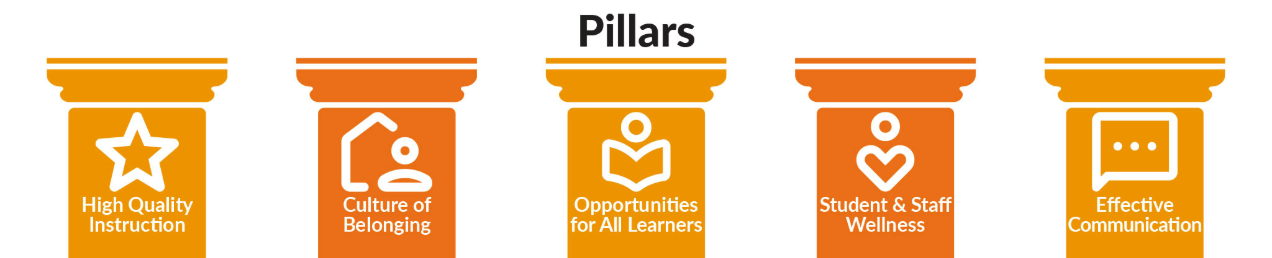
Welcome to October! As part of our ongoing commitment to our district’s strategic plan, this month’s focus is on High-Quality Instruction + Canvas.
According to John Hattie’s Visible Learning research, any teaching strategy with an effect size over 0.40 accelerates student learning beyond a typical year's growth.
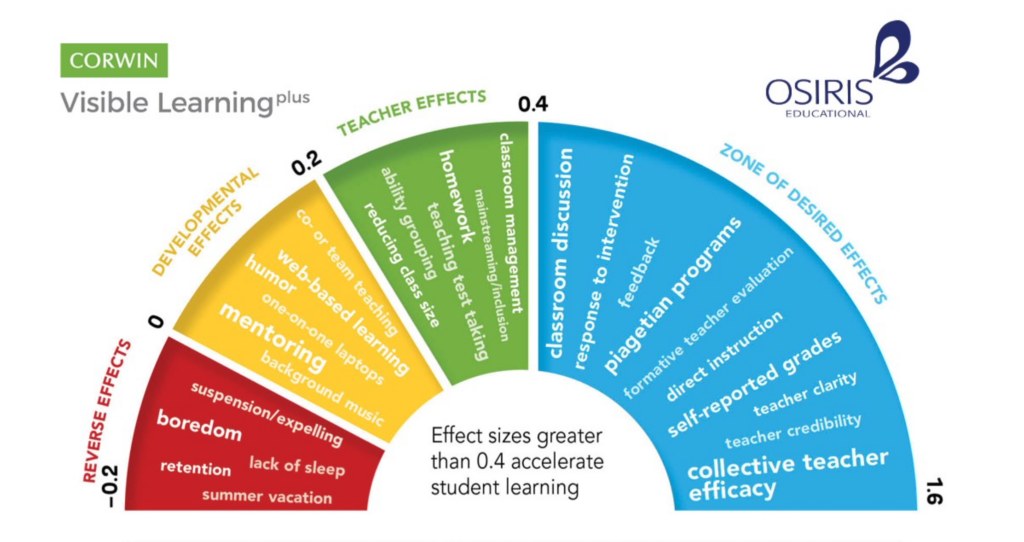
Here is how four high-impact, evidence-based strategies from John Hattie's research and modified into these teacher-friendly PDFs from Utah State Board of Education. You can find these and more linked in the USBE PCBL Framework. For our October Update, we are looking to connect some of these Evidence-Based Practices with using Canvas:
High-Impact Teaching Strategies & Canvas Connections
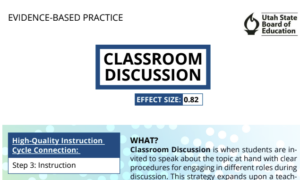
Classroom Discussion (Effect Size: 0.82)
-
-
The Strategy: Active peer-to-peer discourse deepens understanding through structured interaction.
-
Canvas Connection: Use Discussions to host asynchronous preparation threads or post-lesson debriefs. Teachers can enable the "Users must post before seeing replies" feature to encourage original student thinking, and embed sentence starters directly in the prompt to support clear academic dialogue.
-
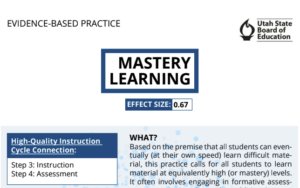
Mastery Learning (Effect Size: 0.67)
-
The Strategy: Breaking content into distinct units where students receive targeted feedback and multiple opportunities to demonstrate competence.
-
Canvas Connection: Build Modules with Prerequisites and Requirements (e.g., scoring at least 80% on a quiz before moving forward). Pair this with Mastery Paths to automatically route students to customized support, intervention, or enrichment activities based on their score.
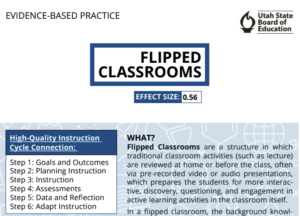
Flipped Classrooms (Effect Size: 0.56)
-
-
The Strategy: Moving traditional lecture/background content outside of class time frees up face-to-face hours for interactive practice and small-group support.
-
Canvas Connection: Embed short instructional videos (via MyVideoSpot) directly onto a Canvas Page as pre-class prep. Use embedded video questions (see How to Use Insights in MyVideoSpot) to check for baseline understanding before students step into the classroom.
-
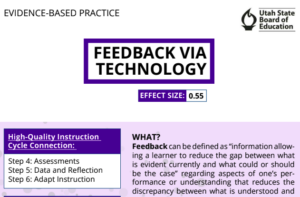
Feedback via Technology (Effect Size: 0.55)
-
-
The Strategy: Providing timely, actionable, and specific feedback helps students understand where they are going, how they are doing, and what steps to take next.
-
Canvas Connection: Leverage SpeedGrader to leave audio, video, or annotated text comments directly on student submissions (See Feedback tutorial). Use Rubrics linked to learning outcomes so students get clear, immediate data on their progress.
-
Next Steps for Educators
Pick one strategy above to try or refine in your Canvas courses this month. Small, intentional shifts in how we leverage digital tools directly amplify high-quality classroom instruction!