
Mastery Trackers are located in your Canvas course. To add a previous designed assessment to your course and make it visible for students please follow these directions.
Category: Canvas
Elementary C-Maps are loaded in Canvas
Elementary C-Maps are loaded in Canvas
Log in to Canvas through the WAFFLE
Elementary ELA, Math, Science curriculum maps are loaded for you

Canvas Update: Aug 2026
Back-to-School with Canvas: Essential Updates & Features
Welcome to a new school year! To help you prepare your courses and make the most of Canvas, here is a quick round-up of course setup tips, available support resources, and newly released features rolling out by August 15th.
🔁 Course Setup Reminder: Importing Content
When setting up your course for the new term, use the Course Import tool to copy content over from previous courses:
- Navigate to Course Settings and choose Import Course Content.
- Under Select Content Type, choose Copy a Canvas Course.
- Select whether to import All content or Select specific content.
- Important: Under Options, check Adjust events and due dates and choose to "Shift dates" or "Remove dates" to prevent grade sync issues and outdated deadlines.
🆘 Need Help & Technical Support?
If you run into questions or issues while working in Canvas, help is always just a click away via the global navigation menu (question mark icon):
- Search the Canvas Guides: Search through step-by-step tutorials to find quick answers.
- Report a Problem: Directly report a glitch or issue if Canvas misbehaves.
- Training Services Portal: Access self-paced video training courses and webinars.
- Local Support: Reach out directly to your district instructional coach or technology specialist!
✨ New Features (Rolling Out by Aug 15th)
📓 Student Notebook
Canvas is introducing a built-in Notebook tool to help students stay organized directly within their course pages:
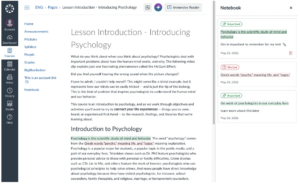
- Take Notes & Highlight: Students can take notes, highlight important text, and mark items as "Important" or "Unclear" while reviewing course content.
- Reactions: Add instant reactions to lesson materials.
- Centralized View: Students can review all their compiled notes, highlights, and reactions in a dedicated Notebook tab in the course navigation.
♿ Course Accessibility Checker
Designing accessible course materials is now easier than ever with the dedicated Course Accessibility Checker: 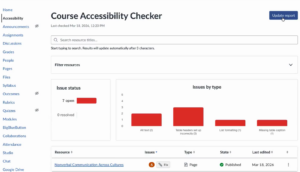
- Whole-Course Scanning: Scan Canvas-created content across your entire course to identify, remediate, and validate accessibility issues (such as missing alt text, low color contrast, or incorrect table headers).
- Fix Wizard: Easily step through flagged issues and apply quick fixes or automated remediations directly from the report view.
- On-Demand Updates: Click Update report at any time to re-scan and ensure your content meets accessibility standards for all learners.
Need assistance setting up these new features in your classroom? Reach out to your instructional coaching specialist!
Canvas Gradebook Filter PBL
Utilize Canvas Gradebook filters to identify standards-aligned assignments, ensuring an efficient and accurate proficiency-based grading process.
April 2026- Big 6 AI Updates
Ready to see what’s new in your digital ecosystem? We have some fresh AI updates to share regarding our Big 6 tools that will change the way you and your students create, collaborate, and learn!
April 24th Lunch & Learn- Big 6 AI Updates by kelli.cannon