Skip to content

Back-to-School with Canvas: Essential Updates & Features

Welcome to a new school year! To help you prepare your courses and make the most of Canvas, here is a quick round-up of course setup tips, available support resources, and newly released features rolling out by August 15th.

🔁 Course Setup Reminder: Importing Content

When setting up your course for the new term, use the Course Import tool to copy content over from previous courses:

  1. Navigate to Course Settings and choose Import Course Content.
  2. Under Select Content Type, choose Copy a Canvas Course.
  3. Select whether to import All content or Select specific content.
  4. Important: Under Options, check Adjust events and due dates and choose to "Shift dates" or "Remove dates" to prevent grade sync issues and outdated deadlines.

🆘 Need Help & Technical Support?

If you run into questions or issues while working in Canvas, help is always just a click away via the global navigation menu (question mark icon):

  1. Search the Canvas Guides: Search through step-by-step tutorials to find quick answers.
  2. Report a Problem: Directly report a glitch or issue if Canvas misbehaves.
  3. Training Services Portal: Access self-paced video training courses and webinars.
  4. Local Support: Reach out directly to your district instructional coach or technology specialist!

✨ New Features (Rolling Out by Aug 15th)

📓 Student Notebook

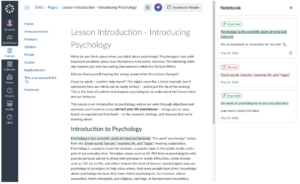
Canvas is introducing a built-in Notebook tool to help students stay organized directly within their course pages:

student notebook new feature

  • Take Notes & Highlight: Students can take notes, highlight important text, and mark items as "Important" or "Unclear" while reviewing course content.
  • Reactions: Add instant reactions to lesson materials.
  • Centralized View: Students can review all their compiled notes, highlights, and reactions in a dedicated Notebook tab in the course navigation.

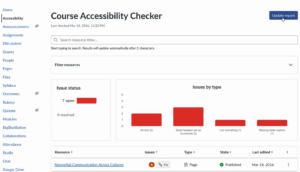
♿ Course Accessibility Checker

Designing accessible course materials is now easier than ever with the dedicated Course Accessibility Checker: accessibility tool report

  • Whole-Course Scanning: Scan Canvas-created content across your entire course to identify, remediate, and validate accessibility issues (such as missing alt text, low color contrast, or incorrect table headers).
  • Fix Wizard: Easily step through flagged issues and apply quick fixes or automated remediations directly from the report view.
  • On-Demand Updates: Click Update report at any time to re-scan and ensure your content meets accessibility standards for all learners.

Need assistance setting up these new features in your classroom? Reach out to your instructional coaching specialist!

As we head into the final weeks of the school year, our classrooms are buzzing with collaborative energy. This month, we are focusing on a vital characteristic of our district’s Portrait of a Graduate: Responsible Teammate.

The Definition: "As responsible teammates, we demonstrate dependability through positive collaboration with others and a commitment to diligence in our everyday actions."

Being a responsible teammate goes beyond just "helping out"—it’s about being a person others can count on to show up, do the work, and celebrate the collective success of the group.

Feature Spotlight: Classroom Gallery Walls

To support this commitment to collaboration, we are spotlighting the Classroom Gallery feature in Adobe Express. This tool creates a shared digital space where student work lives together, fostering a sense of community and mutual respect.

How it works for your classroom:

  1. Create a Shared Space: Teachers can create a "Gallery" for a specific project or unit.
  2. Collaborative Contribution: Students add their own Adobe Express designs, videos, or pages to the gallery with a single click.
  3. Real-Time Updates: As students refine their work and resubmit, the gallery updates automatically, showing the progress of the entire team.

Try it Today!

Ready to build your first digital wall? Head to the Classrooms tab in Adobe Express and select "Create Gallery." Whether you’re showcasing end-of-year digital yearbooks, science fair posters, or creative writing portfolios, use the gallery to celebrate the hard work and responsibility your students have shown all year long.

For more info, check out this Big 6 in 60 video:

Or this Adobe help page: https://helpx.adobe.com/express/web/adobe-express-for-education/for-educators/create-and-manage-classroom-galleries.html

As we move into the final stretch of the school year, our focus shifts toward empowering students to take ownership of their growth. This month, we are highlighting the Resilient Lifelong Learner — a Resilient Lifelong Learner isn’t just someone who gets the right answer; they are students who embrace challenges, learn from setbacks, and remain curious in an ever-changing world. To support this mindset, we are thrilled to spotlight a new feature in Adobe Express.

Adobe Express has just released a new beta feature designed to bridge the gap between curriculum standards and creative student output. Teachers can now generate high-quality, engaging classroom activities in a matter of seconds.

How it works:

  • Input Your Goal: Simply type in a specific topic (e.g., "The Water Cycle"), a learning objective, or a state standard.
  • Instant Generation: The AI engine builds a complete classroom activity tailored to your prompt.
  • Student-Ready Instructions: It doesn't just create the "what"—it creates the "how," providing clear, step-by-step instructions for students to follow.
  • Teacher Refinement: Once the materials and instructions have been generated, teachers can change any part of the template or instructions to fine-tune it for your classroom before sharing it with students.

By automating the initial scaffolding, teachers can spend more time facilitating "productive struggle." Students get clear guardrails that allow them to experiment, fail safely, and iterate on their creative projects—the very heart of being a resilient learner.

Log in to your district Adobe Express account and look for the "Generate Activities" box under the “Teach” tab. Give it a standard you’re teaching next week and watch the magic happen.

a screenshot of the "generate classroom activities" box in Adobe Express

Our district is finalizing updates to all web content and mobile apps to meet the April 24, 2026, federal deadline for ADA digital accessibility. We are committed to ensuring that every student and family can independently access our online resources, from school websites to district documents. By meeting these WCAG 2.1 Level AA standards, we hope to make our digital community just as inclusive as our physical schools.

ADA Compliance by kelli.cannon


This month’s focus is on Digital Access. Adobe Express is designed with the philosophy that creativity should be accessible to everyone, regardless of physical ability or technical expertise. For educators, this means the platform provides several built-in "guardrails" and tools that ensure student-created content is inclusive from the start.

Key Accessibility Features

  • Alt-Text for Images: Users can add alternative text descriptions to images. This is essential for screen readers, allowing students who are blind or have low vision to understand the visual context of a project.
  • Auto-Captioning for Video: Adobe Express can automatically generate synchronized captions for video projects. This not only supports students who are d/Deaf or hard of hearing but also improves comprehension for English Language Learners (ELL).
  • Accessible PDF Export: When students create documents or flyers, Adobe Express supports exporting to PDF with basic tagging structures. This makes the final file more navigable for assistive technologies.

By integrating these tools into the creative process, teachers can move beyond simply teaching accessibility to making it a standard part of every digital assignment.

Watch this short video for some great tips for keeping your digital projects accessible: https://youtu.be/2jN2zeGtFs4?si=1AKPRSnrY6Z5IUu9