How do I get to Mastery Connect?
DTL Spotlight
Adding Assessments from Tracker to Canvas
Mastery Trackers are located in your Canvas course. To add a previous designed assessment to your course and make it visible for students please follow these directions.
Google Updates: September 2026
🍎 Google and ISTE+ASCD AI Educator Microcredentials
The AI skills you need, delivered the way you need them. The Google AI Educator Series provides free, standards-aligned AI literacy training for every educator across K-12 and higher education. Learn from Google through bite-sized sessions designed to meet your schedule, and earn digital badges along the way. This fall, grow your Googleyness by earning the first half of the set with more to be released on September 2. More information here. Try them out: Google AI Educator Series
🍎 FREE Google Certifications
Google Certified Educator Level 1, Level 2, and Gemini Certification Exams are now free of charge indefinitely! Start your journey today: https://educertifications.google/
🍎NotebookLM is now Gemini Notebook
NotebookLM was just renamed to Gemini Notebook. It remains a standalone product focused on being your premier research tool, but it will now do more across the Google ecosystem, including inside the Gemini app and Google Search. Learn more here!
🍎 ISTE 2026 Launch Guide
July brought new, helpful tools to support educators and students. In Google's ISTE 2026 launch guide, you’ll find more than 80 new or recently launched features! Learn more here!
🍎 50+ new features coming to Google for Education
Discover our latest launches, including new educator-led AI tools in Google Classroom, study notebooks and no-cost practice ACT and GRE tests in Gemini, Guided Learning in Class tools for managed Chromebooks, and the Classroom app in Gemini to help educators with everyday teaching tasks. Learn more here!
🍎 Interested in being a leader?
GEG Utah is looking for additional leadership team members for the 2026-2027 school year. It’s a fantastic way to elevate your professional profile, connect directly with Google for Education teams, and bring fresh, innovative ideas to our teaching community. By joining us, we can divide and conquer, keeping events fun, manageable, and impactful. If you're interested in stepping into this leadership role, fill out the following form:
GEG Leadership Interest
🍎 Sharing is Caring!
Share GEG Utah with others! It's completely free, and you'll get monthly emails full of helpful resources, info on upcoming meetups, and more. Here’s the link to join if you're interested.
Join GEG Utah Form
MyVideoSpot Updates: September 2026
As you begin to interact with MyVideoSpot again this year, remember that there are tutorials and help videos available to you at any time!
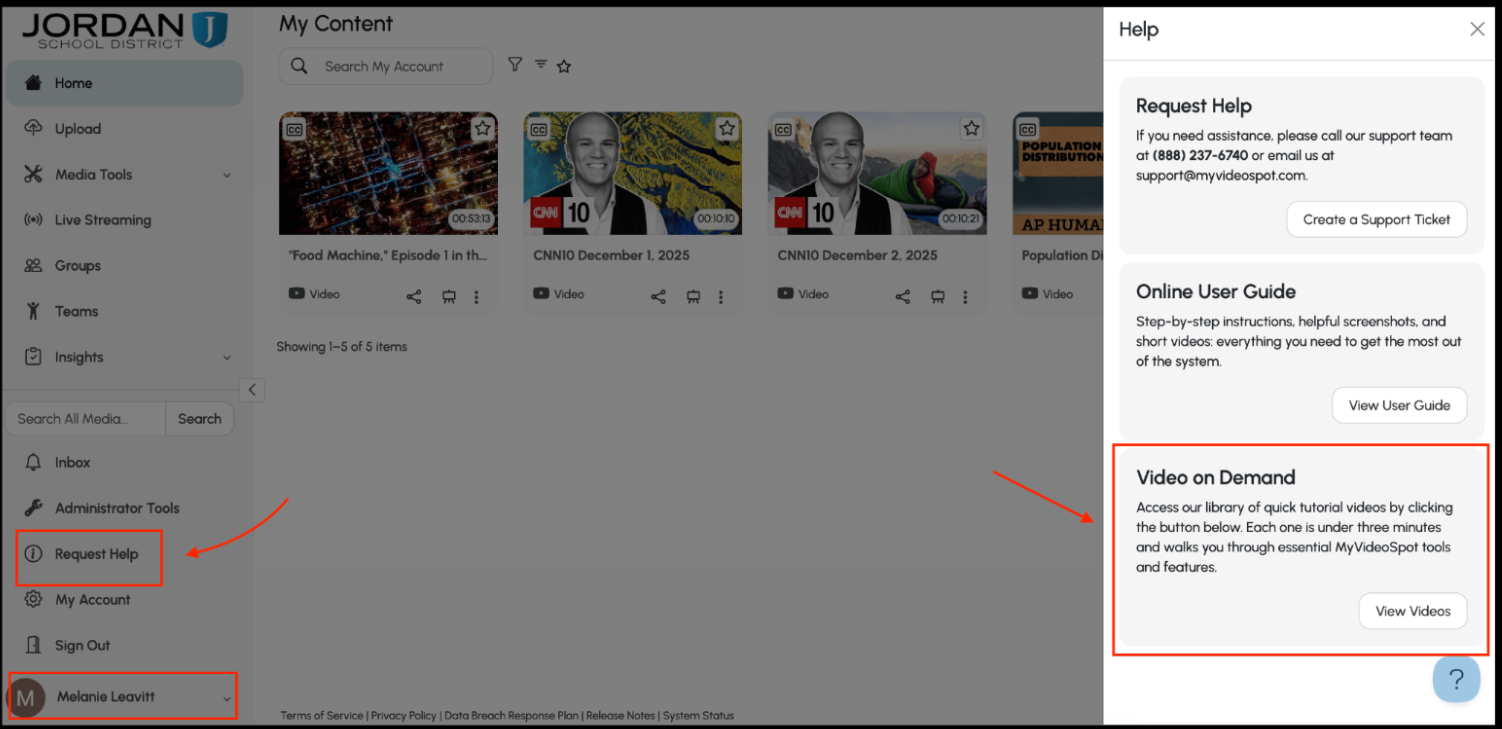
In MyVideoSpot, click on your name in the bottom left corner, find the “Request Help” button, and then select “View Videos” under the “Videos on Demand” section.
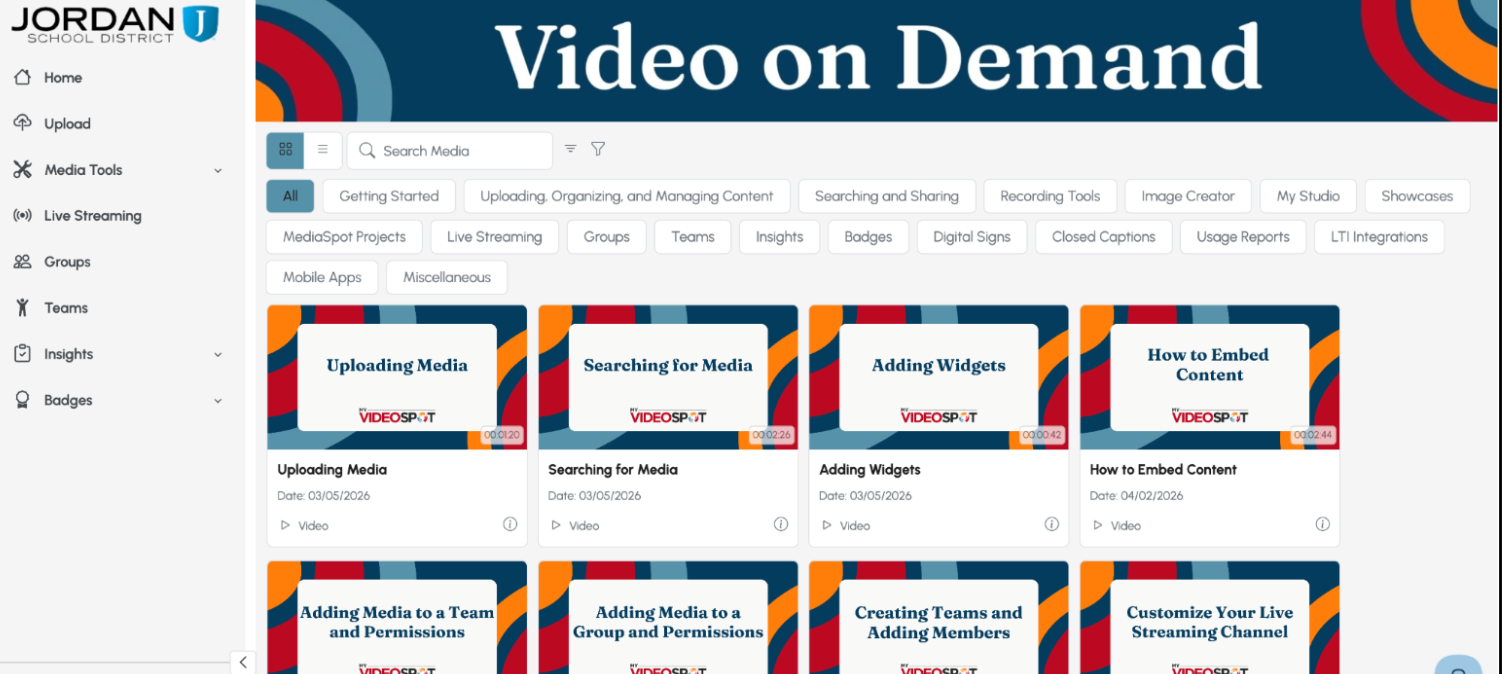
Learn how to navigate the site, the difference between groups and teams, and how to view reports!
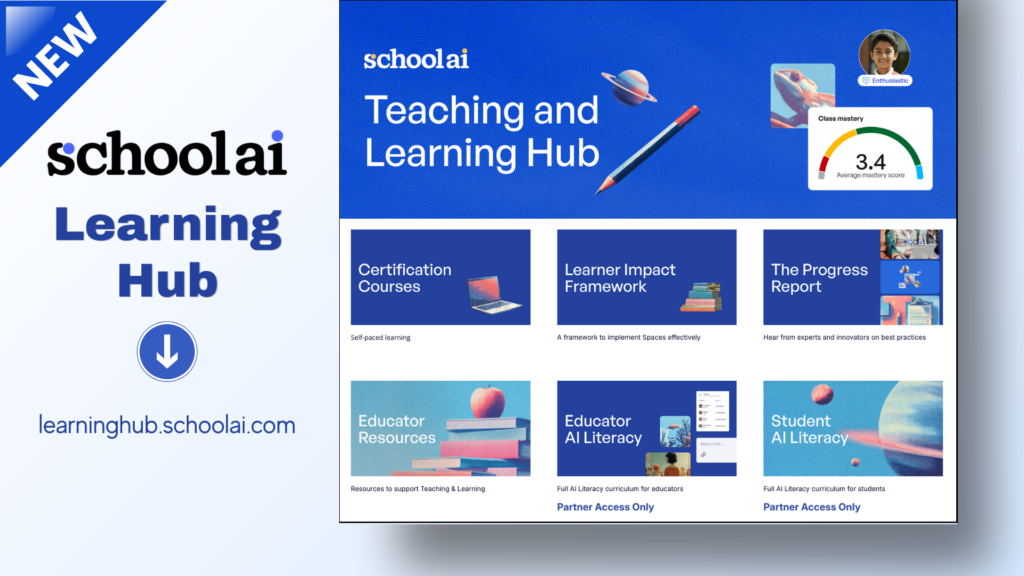
New SchoolAI Teaching and Learning Hub
SchoolAI has a new teaching and learning hub that is now live: learninghub.schoolai.com
The hub is designed to be a "one-stop shop for getting the most out of SchoolAI." It includes self-paced courses, events and live sessions, AI literacy courses for staff and students, toolkits, and many other resources to help teachers go from "how does this work?" to "look what we build!"
Check out the Hub, bookmark it, and use it to continue learning!