
Back-to-School with Canvas: Essential Updates & Features
Welcome to a new school year! To help you prepare your courses and make the most of Canvas, here is a quick round-up of course setup tips, available support resources, and newly released features rolling out by August 15th.
🔁 Course Setup Reminder: Importing Content
When setting up your course for the new term, use the Course Import tool to copy content over from previous courses:
- Navigate to Course Settings and choose Import Course Content.
- Under Select Content Type, choose Copy a Canvas Course.
- Select whether to import All content or Select specific content.
- Important: Under Options, check Adjust events and due dates and choose to "Shift dates" or "Remove dates" to prevent grade sync issues and outdated deadlines.
🆘 Need Help & Technical Support?
If you run into questions or issues while working in Canvas, help is always just a click away via the global navigation menu (question mark icon):
- Search the Canvas Guides: Search through step-by-step tutorials to find quick answers.
- Report a Problem: Directly report a glitch or issue if Canvas misbehaves.
- Training Services Portal: Access self-paced video training courses and webinars.
- Local Support: Reach out directly to your district instructional coach or technology specialist!
✨ New Features (Rolling Out by Aug 15th)
📓 Student Notebook
Canvas is introducing a built-in Notebook tool to help students stay organized directly within their course pages:
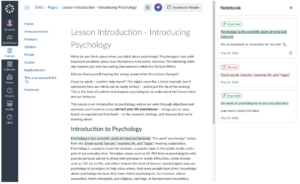
- Take Notes & Highlight: Students can take notes, highlight important text, and mark items as "Important" or "Unclear" while reviewing course content.
- Reactions: Add instant reactions to lesson materials.
- Centralized View: Students can review all their compiled notes, highlights, and reactions in a dedicated Notebook tab in the course navigation.
♿ Course Accessibility Checker
Designing accessible course materials is now easier than ever with the dedicated Course Accessibility Checker: 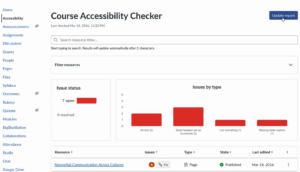
- Whole-Course Scanning: Scan Canvas-created content across your entire course to identify, remediate, and validate accessibility issues (such as missing alt text, low color contrast, or incorrect table headers).
- Fix Wizard: Easily step through flagged issues and apply quick fixes or automated remediations directly from the report view.
- On-Demand Updates: Click Update report at any time to re-scan and ensure your content meets accessibility standards for all learners.
Need assistance setting up these new features in your classroom? Reach out to your instructional coaching specialist!